Campus Health Winter Recess Closure (Dec. 24–Jan. 4)

Tulane University Campus Health is closed for winter recess from December 24 through January 4 and will reopen for normal operations on January 5. The following resources are available while we’re closed.

  • 24/7 Virtual Urgent Care (LA only): Tulane Telehealth is available at no additional cost to students who have paid the Campus Health Fee. Students must be physically located in Louisiana to use Tulane Telehealth. Learn more: campushealth.tulane.edu/tulane-telehealth
  • After-hours in-person care: View local care options: campushealth.tulane.edu/after-hours
  • 24/7 Mental Health Crisis Support: Call THE LINE: 504-264-6074

Upload Insurance Card

To upload your health insurance card, select Insurance on the Patient Portal homepage.
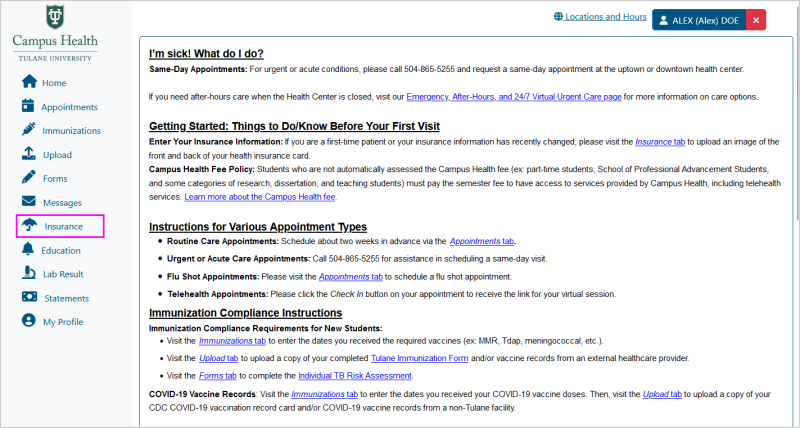
Screenshot of Patient Portal homepage, with the "Insurance" button highlighted on the navigation menu

Any previously uploaded insurance information will appear on this page. To add a new insurance, select Add New. Enter the Insurance Company, the Policy Number, and the Group Number if applicable.
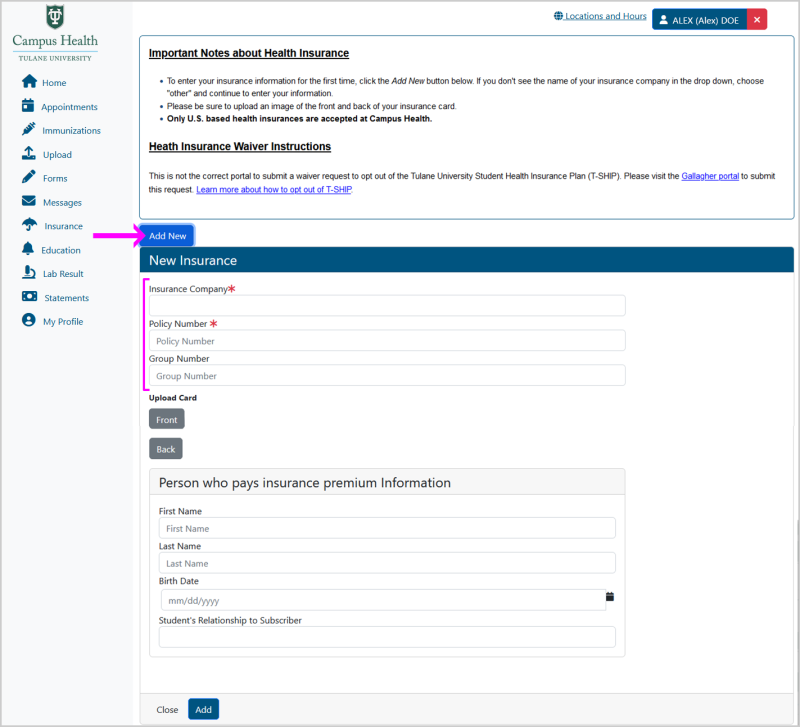
Screenshot of Insurance Page that shows the New Insurance menu, with a pink arrow pointing at the "Add New" button and the "Insurance Company", "Policy Number" and "Group Number" text fields highlighted

To upload the card, select Front and upload a photo of the front of your health insurance card. Your file must be in either .JPG or .PNG format - the portal does not accept .PDF files. Make sure your file is smaller than 4 MB.
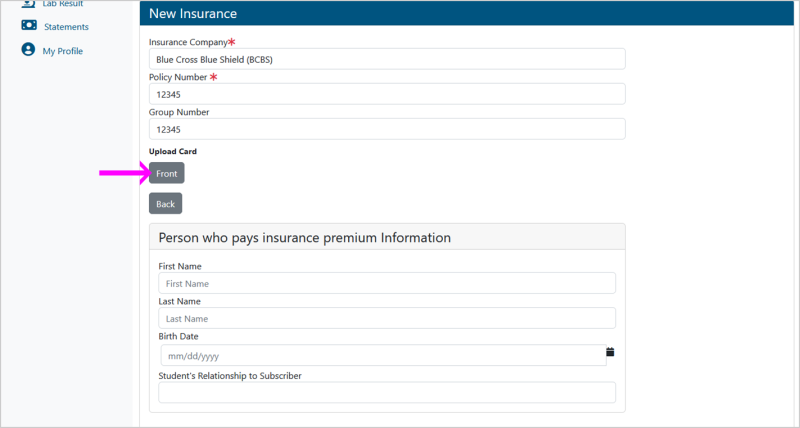
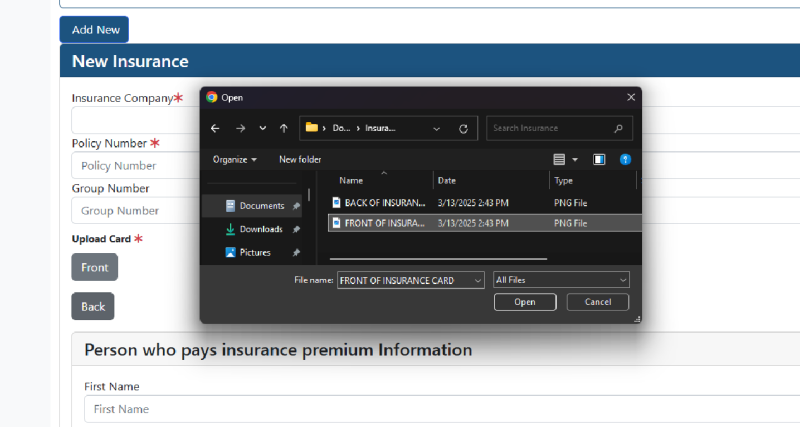
Screenshot of the "New Insurance" menu, with a pink arrow pointing at the "Front" button under the "Upload Card" section
Upload insurance card, front

Then select Back to upload the back of your health insurance card. Your file must be in either .JPG or .PNG format - the portal does not accept .PDF files. Make sure your file is smaller than 4 MB.
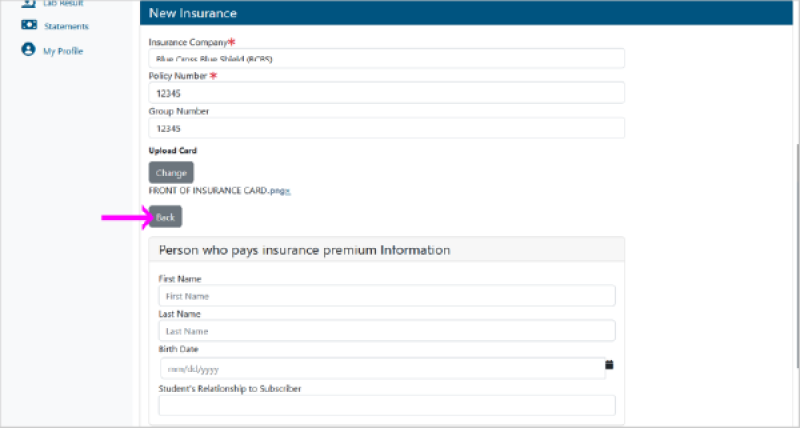
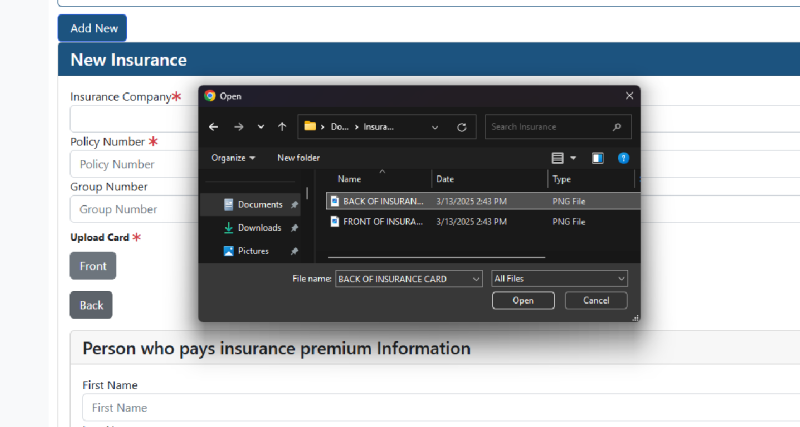
Upload back, button
Upload insurance card, back

Input the policyholder information under the header Person who pays insurance premium information. Then select Add.
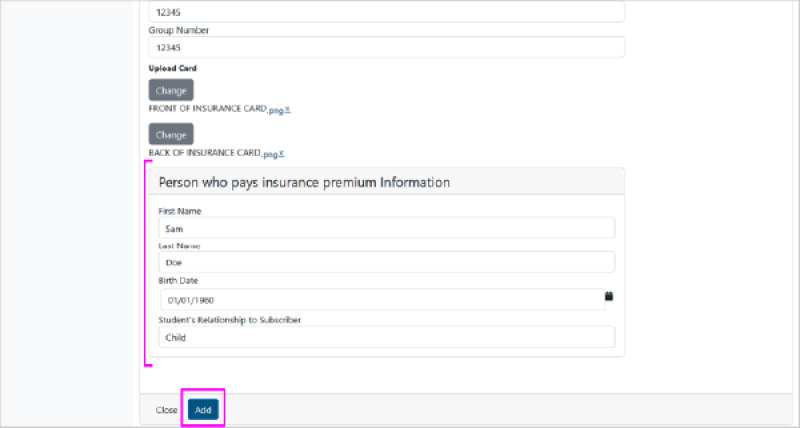
Review

Your new insurance will now show as an Insurance on File. You can click on the View Front and View Back hyperlinks to view your health insurance card.
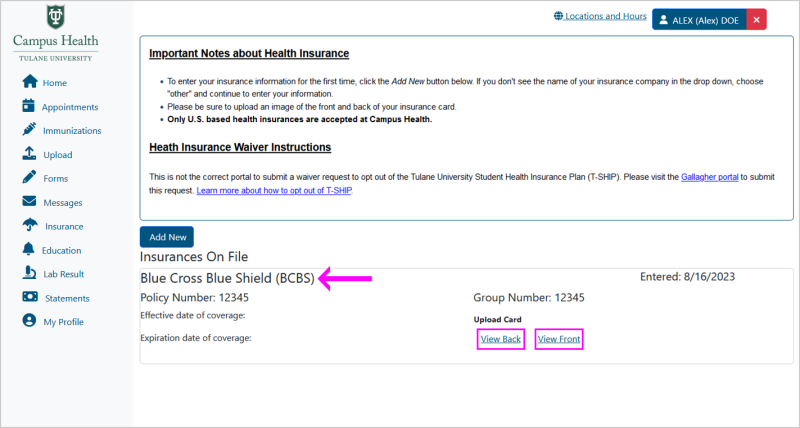
Screenshot of Insurance page that shows fully uploaded "Insurance on File" information, with a pink arrow pointing at the name of insurance plan and links to "View Front" and "View Back" of insurance card both highlighted